
Floating Buttons & Toolbox
When you open any supported AI site, a group of quick-access buttons floats on the edge of your screen. These are Ophel's most frequently used action shortcuts. This page explains their behavior, what each button does, and how to use the toolbox menu.
Default Buttons

| Button | Name | Action |
|---|---|---|
| Panel | Toggle panel | Show or hide the Ophel side panel |
| Toolbox | Toolbox menu | Open the quick-action popup menu (see below) |
| Search | Global search | Open the search overlay (same as Ctrl+K) |
| Theme | Toggle theme | Switch between light and dark mode (same as Alt+D) |
| Zen | Zen mode | Hide page UI clutter to focus on the conversation |
| Settings | Open settings | Jump to Ophel settings |
| ↑ | Scroll to top | Load full history and jump to the top of the conversation |
| Anchor | Return to anchor | Jump back to the last saved position (see Return Anchor section) |
| ↓ | Scroll to bottom | Jump to the bottom of the conversation |
You can toggle the visibility and reorder the buttons in Settings → General → Quick Buttons. Changes take effect immediately after dragging.
Button Group Behavior
Auto-collapse: After 5 seconds without interaction, the button group collapses into a compact pill. Move your mouse within ~150 px and it automatically expands again.
Drag to reposition: Long-press (or drag directly) the button group to reposition it anywhere on screen. The position is saved and restored the next time you open a supported site.
Opacity: Under Settings → General → Quick Buttons → Opacity, you can dial down the opacity so the buttons blend into the background.
Panel mode awareness: In Floating mode, the Scroll to top, Scroll to bottom, and Anchor buttons hide automatically when the panel is open (it's already on screen). In Edge Snap mode, these three buttons stay visible at all times because the panel is tucked away at the edge.
Return Anchor
Every time you click Scroll to top or Scroll to bottom, Ophel records your current scroll position as an anchor. Click Anchor to jump back. Click it again to toggle between the anchor and your current position — useful for quickly cross-referencing different parts of a long conversation.
You can also use keyboard shortcuts:
Alt+T— Jump to top (saves anchor)Alt+B— Jump to bottom (saves anchor)Alt+Z— Return to anchor
If you want to set an anchor without scrolling anywhere, go to Settings → General → Quick Buttons and enable the Manual Anchor button (hidden by default). Clicking it saves your current position as the anchor without moving the page.
Toolbox Menu
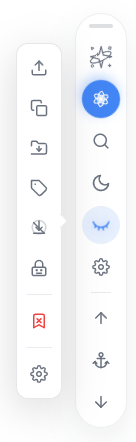
Click the toolbox button (☰, the second button by default) to open a dropdown with the following actions:
| Menu item | Description |
|---|---|
| Export | Export the current conversation to a file (Markdown / JSON / TXT) |
| Copy Markdown | Copy the conversation as Markdown to the clipboard |
| Move to folder | Assign or change the folder for the current conversation |
| Set tag | Add or update tags on the current conversation |
| Scroll lock | Toggle scroll lock (page won't auto-scroll to bottom while AI is generating) |
| Model lock | Toggle whether Ophel auto-switches to a specified model on page load |
| Clean up bookmarks | Remove ghost bookmarks (outline bookmarks pointing to content that no longer exists) |
| Settings | Open Ophel settings (always shown, cannot be hidden) |
Which items appear in the toolbox is configurable in Settings → General → Toolbox Menu.
Related Settings
Settings → General → Quick Buttons:
| Setting | Description |
|---|---|
| Opacity | Overall opacity of the button group (0% is nearly invisible, 100% is fully opaque) |
| Button list | Check/uncheck each button's visibility; drag to reorder |
Settings → General → Toolbox Menu:
| Setting | Description |
|---|---|
| Menu item list | Check/uncheck each item's visibility (Settings item cannot be hidden) |