
Panel Overview
After installation, open any supported AI site and Ophel will activate automatically — a side panel appears on the right, and a group of floating quick-action buttons appear at the screen edge.
The Three Tabs
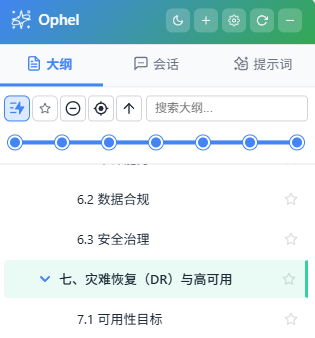
Click the tab bar at the top of the panel to switch between:
| Tab | Description |
|---|---|
| Outline | Live structure tree of the current conversation. Click to jump. |
| Conversations | Aggregated history from all platforms. Supports folders and tags. |
| Prompts | Your personal prompt library. Click to insert instantly. |
If the panel does not appear automatically, press Alt+P (Mac: Option+P) to open it.
Basic Navigation
| Action | Method |
|---|---|
| Switch tabs | Click the tab bar, or press Alt+1 / Alt+2 / Alt+3 (Mac: Option+1 / 2 / 3) |
| Open / close panel | Alt+P (Mac: Option+P), or click the panel toggle in the floating buttons |
| Global search | Ctrl+K (Mac: Cmd+K, or your configured shortcut) |
| Toggle light / dark | Alt+D (Mac: Option+D), or the theme icon in the floating buttons |
| Open settings | Alt+, (Mac: Option+,), or the settings item in the toolbox |
Floating Quick Buttons

The floating button group at the screen edge is your fastest access point:
- Auto-collapses into a pill shape after 5 seconds of inactivity; expands again when your cursor moves within ~150px
- Long-press and drag to reposition it anywhere on screen
- Click ☰ (Toolbox) to reveal more actions: export conversation, move to folder, set tags, toggle scroll lock, model lock, and more
→ See Floating Buttons & Toolbox for full details
Ghost Pass-Through Mode

Does the panel cover something you need to click? No need to close it first:
Hold Ctrl (Windows/Linux) or Command (Mac) for about 0.2 seconds (that key alone). The panel turns semi-transparent and lets mouse clicks pass through — you can click directly on the AI page behind it. Release the key to restore normal mode.
Edge Snap

The panel has two operating modes, configurable in Settings → General → Panel → Panel Mode:
| Mode | Behavior |
|---|---|
| Edge Snap | The panel hugs the screen edge and stays hidden. Hover over the edge to peek at the panel. |
| Floating | The panel floats above the page, stays visible at all times, and can be freely repositioned. |
You can also click the mode toggle button (pin / snap icon) in the panel header to switch instantly — no need to open settings.
In edge-snap mode, dragging the panel title bar pulls it away from the edge. While dragging, move it to the opposite edge to change the snap direction.
Panel Header
The panel header provides the following controls:
| Element | Action |
|---|---|
| Title area | Hover to see a random usage tip (shortcuts auto-adapt to your platform and custom keybindings); double-click to toggle privacy mode |
| Mode toggle | Switch between Edge Snap and Floating mode with one click |
| Theme toggle | Switch light / dark mode (Alt+D, Mac: Option+D) |
| Settings button | Open settings dialog (Alt+,, Mac: Option+,) |
Drag the title bar to reposition the panel. If the “Open in New Tab” setting is enabled, a new-tab button will also appear.
Basic Panel Settings
All settings below are in Settings → General → Panel:
| Setting | Description | Default |
|---|---|---|
| Panel mode | Edge Snap (hide at edge, hover to peek) or Floating (always visible) | Edge Snap |
| Default side | Left or right side of the screen | Right |
| Panel width | Panel width (200–600 px) | 320 px |
| Panel height | Panel height as a percentage of viewport (50–100 vh) | 85 vh |
| Edge distance | Initial distance from screen edge | 25 px |
| Snap threshold | Distance from edge that triggers snapping (0–400 px) | 30 px |
What's Next
- Smart Outline — Navigate long conversations in seconds
- Conversation Manager — Organize your chat history
- Prompt Library — Save and reuse your best prompts
- Quick Buttons — Button config and toolbox details
- Enhancements Overview — All enhancement features
- Shortcuts — Full shortcut reference